
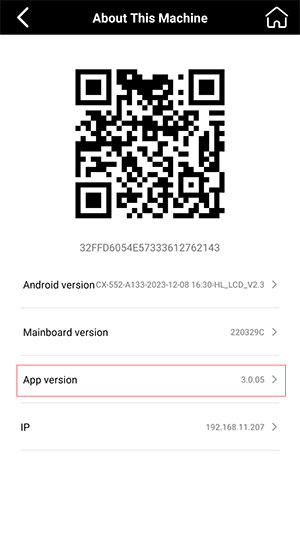
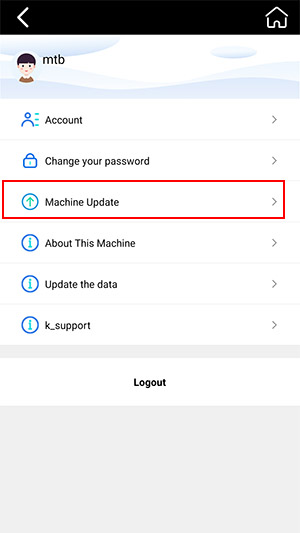
Graphic cutting and custom text cutting depend on the installed app version. The documented Word Cutting feature is available only in version 3.0.03 and above. Check your current version in About This Device. If it is lower than 3.0.03, update through My > App Upgrade. After installing version 3.0.03, Word Cutting appears in the upper-left corner of any back film template.
Version Requirement and Feature Scope
Version 3.0.03 is the minimum documented version for this feature. Versions lower than 3.0.03 do not include it, so the installed version determines whether Word Cutting is available. The available instructions specifically identify the feature as Word Cutting and explain where it appears after the required upgrade.
If the current app is already version 3.0.03 or above, the stated version requirement has been met. You can proceed to a back film template and check the documented feature location. The upgrade instruction applies when the displayed version is lower than 3.0.03.
Check the Version and Update When Needed
Use the version information first to decide whether an app upgrade is required:
- Open About This Device and check the current app version.
- Compare the displayed version with version 3.0.03, which is the minimum version that supports Word Cutting.
- If the version is lower than 3.0.03, go to My > App Upgrade and update the app to the latest version.
- After upgrading to version 3.0.03, open any back film template and check its upper-left corner for Word Cutting.
Finding Word Cutting After the Upgrade
Once version 3.0.03 is installed, Word Cutting is located in the upper-left corner of any back film template. This location applies across any back film template, so a particular template is not specified as necessary. Opening a back film template and finding Word Cutting in that corner confirms that you are viewing the documented feature location.
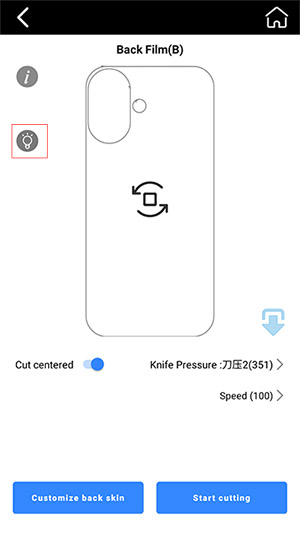
The two relevant checks are therefore the version shown in About This Device and the Word Cutting option within a back film template. If the version is below the stated requirement, complete the app upgrade before looking for the feature.
这篇文章有帮助吗?
你的反馈会帮助我们改进 GEO 内容质量。